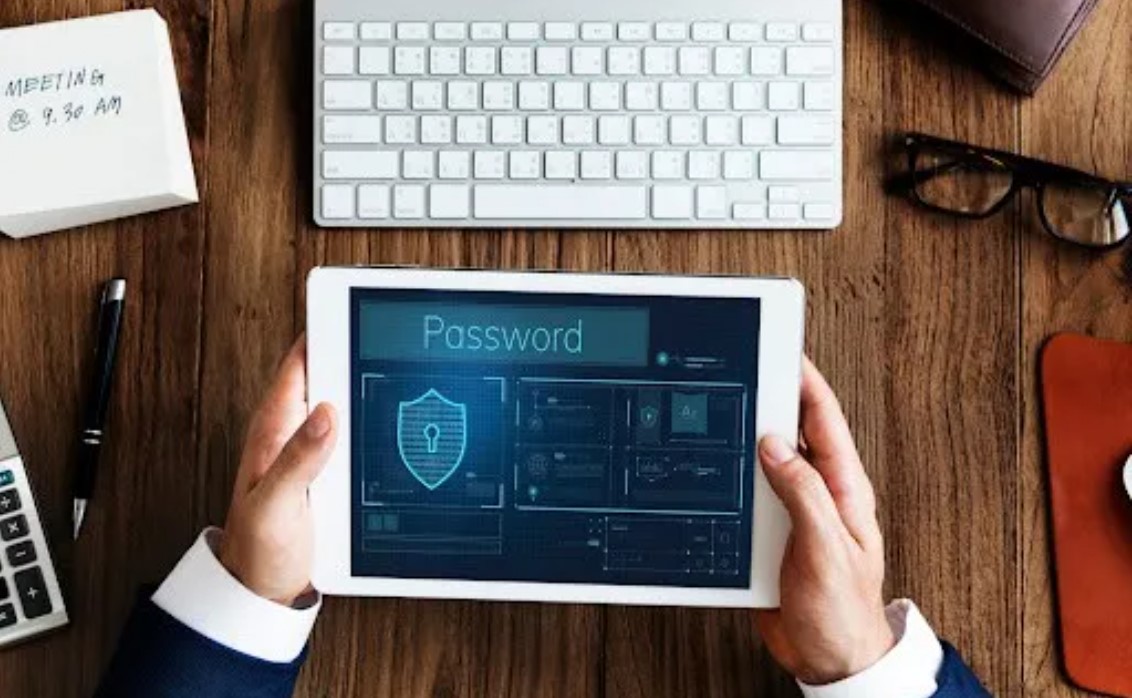
Password Manager: How to Choose the Right One and Use It Properly
A Password Manager solves a problem most people feel every day: too many accounts, too many logins, and too much risk when the same password gets reused. Modern life runs through email, banking, shopping, work tools, and social apps. One weak credential can open the door to far more than a single website.
This guide explains what a Password Manager does, how to choose one without getting stuck, and how to use it properly so it actually improves security instead of adding stress.
Why a Password Manager matters now
A Password Manager is not just a convenience tool. It is a safety upgrade that reduces the damage caused by data breaches, phishing, and password reuse. When a breached password is reused elsewhere, attackers test the same combo across email, shopping accounts, and cloud storage. That is the chain a Password Manager is meant to break.
Most people asking “what would a password manager allow you to do” are really asking two things: how it makes logins easier and whether it genuinely improves security. The best answer is simple. A Password Manager makes unique passwords realistic, then keeps them usable across devices.
What a Password Manager allows users to do in real life
A Password Manager makes it practical to create long, random credentials for every site, store them once, and sign in without memorizing dozens of variations. It also reduces daily friction, because autofill replaces the habit of typing passwords in a hurry on small screens.
What a Password Manager actually does
Every Password Manager is built around the same core idea: a secure vault that stores login credentials and then fills them when needed. The differences between products matter, but the foundation stays consistent.
The vault, encryption, and the master password
A Password Manager stores passwords inside an encrypted vault. The vault is unlocked with a master password, and that master password should not be reused anywhere else. The strongest tools use modern encryption and are designed so the vault remains unreadable even if someone steals the encrypted data file.
Many reputable products also support “zero-knowledge” designs, where the provider cannot see what is stored inside the vault. In practical terms, this means the vault’s contents remain private even from the company running the service.
Password generation and autofill that prevents weak habits
A Password Manager typically generates strong passwords on demand, then saves them immediately. Autofill fills credentials into login forms, which reduces mistyped passwords and discourages reuse. This feature matters because the hardest part of security is consistency, not knowledge.
Autofill also lowers the chance of entering credentials into the wrong place when the user is distracted, although phishing protection still requires awareness of lookalike sites.
Secure notes, sharing, and account recovery planning
Many Password Managers store more than logins. Secure notes, Wi-Fi passwords, software licenses, and passkeys are common. Some support secure sharing for families or teams, which helps avoid the unsafe habit of sending passwords in messages.
Account recovery is another practical issue. The best setup includes a plan for what happens if the master password is forgotten or if a device is lost. The right plan depends on the product, but the principle is always the same: recovery should not be so easy that it becomes an attacker’s shortcut.
The main types of Password Managers
Not every Password Manager is a standalone app. Many people first encounter password saving inside a browser or operating system, then switch to a dedicated tool when their needs grow.
Browser-based tools: Chrome, Google, Edge, and Opera
Chrome offers built-in saving and autofill, which is why searches like turn off Google Password Manager, disable Chrome Password Manager, chrome disable password manager, and disable password manager chrome are common. These tools are convenient, especially for people who live in one browser, but they can become limiting when devices, browsers, or work profiles multiply.
Microsoft Edge manage passwords features are similar in spirit, often used by people who spend most of their time in the Microsoft ecosystem.
Opera also includes built-in password management, which drives searches such as opera password manager, password manager in opera, password manager opera, and opera gx password manager. Some users even look for the internal settings path, such as opera://password-manager/passwords, to manage saved credentials directly.
Device-based tools: iCloud Keychain and Apple’s ecosystem
Apple users often rely on iCloud Keychain, which prompts the question is Apple password manager safe. For many people inside the Apple ecosystem, iCloud Keychain can be a strong baseline because it is integrated, easy to use, and reduces password reuse. The trade-off is that cross-platform flexibility may feel limited when switching outside Apple devices or managing mixed environments.
Dedicated cross-platform Password Managers
Dedicated Password Managers are designed for multi-device life. They usually provide apps for Windows, macOS, iOS, and Android, plus browser extensions across multiple browsers. This category includes products people actively search for by name, such as Bitdefender Password Manager, Norton Password Manager app, Aura Password Manager, Avast Password Manager, and tools associated with broader security suites.
Some users also search niche signals when verifying legitimacy, like Kaspersky password manager logo, because fake apps and lookalike downloads are a real risk. Brand verification matters more than most people expect.
Enterprise tools can also appear in searches, such as Okta Password Manager or password manager included SSO, where the buyer cares about identity management, admin controls, and business workflows rather than personal convenience.
How to choose the right Password Manager without overthinking
A confident choice comes from matching the tool to real habits. The best Password Manager is usually the one that stays easy enough to use every day.
Device mix and platform support, including Mac needs
Someone searching best password manager for Mac is often dealing with a mix of Safari, Chrome, and Apple devices, sometimes with a Windows work laptop added into the picture. The deciding factor is smooth sync across the exact devices used daily, plus reliable autofill in both browsers and apps.
A Password Manager that feels seamless on a phone but clunky on a laptop tends to fail long-term, because people fall back into reusing passwords when friction returns.
Offline Password Manager versus cloud sync
Some users specifically want an offline password manager because they prefer local control or work in environments where internet access is limited. Offline vaults can work well, but the trade-off is convenience and recovery. Sync becomes the user’s responsibility, and mistakes can lead to version conflicts or data loss.
Cloud sync can be safe when the vault is strongly encrypted and the design prevents the provider from reading the content. For many people, encrypted cloud sync is the difference between a Password Manager that sticks and one that gets abandoned.
Security design signals that actually matter
A Password Manager should offer strong encryption, support multi-factor authentication on the vault, and provide secure handling of autofill. Independent audits and clear security documentation are meaningful trust signals. Marketing promises without technical clarity should not carry much weight.
A practical feature worth prioritizing is breach monitoring or alerts for compromised logins. This helps users respond quickly when passwords appear in leak databases.
Setting up a Password Manager the right way
A Password Manager becomes effective when setup is done calmly and correctly. Rushed setup tends to create lockouts and anxiety, which leads to abandoning the tool.
Creating a master password that is strong and realistic
The master password should be long, unique, and not reused on any website. It should be easy enough to type accurately without needing multiple resets. Some people choose a long phrase that is memorable yet not predictable.
If the Password Manager supports recovery keys, emergency kits, or trusted contacts, those options should be configured early. The goal is preventing “vault panic” later.
Turning on multi-factor authentication and device unlock
Multi-factor authentication on the vault adds meaningful protection if the master password is guessed or stolen. Many managers also support biometric unlock, which improves daily convenience without reducing security when implemented properly.
Some ecosystems are shifting toward passkeys. When supported, passkeys can reduce reliance on passwords for certain logins, but the vault still matters because most accounts will not be fully passwordless for a long time.
Migrating from browsers without making it a project
Many people start inside a browser tool, then switch. The clean approach is importing what exists, then improving accounts gradually. Each time an important account is accessed, the Password Manager can generate a new password and save it. This creates steady progress without an all-day migration marathon.
This is also where searches like can’t reach Google Password Manager appear. If a built-in tool is failing, the safest move is stabilizing access first, then migrating rather than toggling settings in a panic.
Using browser Password Managers safely when they are the current default
Not everyone needs to abandon built-in tools immediately. In some cases, they are a reasonable starting point. The key is understanding what they do well and where they can fall short.
Google Password Manager and common access issues
When someone searches can’t reach Google Password Manager, the real need is usually access continuity. The primary risk is losing saved logins during browser profile confusion, account switching, or device changes. A stable Google account, careful profile separation, and vault security settings can reduce risk, but browser-based storage still depends heavily on that ecosystem staying consistent.
Opera and Opera GX password management
Opera includes password storage features, and Opera GX users often look for password manager opera gx settings when moving between gaming and normal browsing profiles. The path opera://password-manager/passwords is commonly searched because people want direct control over what is saved, what is deleted, and what is exported.
The biggest safety point here is avoiding mixed profiles. When multiple Opera profiles exist, saved credentials can end up scattered, which increases confusion and weakens long-term security habits.
Edge manage passwords and Windows environments
Edge manage passwords features are convenient for Microsoft-centric workflows. The risk pattern is similar: credentials are tied closely to browser profiles and account sync. For people who switch devices often or use multiple browsers, a dedicated Password Manager usually reduces confusion.
When and how to turn off browser password saving
Many users eventually prefer a dedicated Password Manager and want to disable built-in saving to prevent duplication and confusion. That is where queries like disable Google Password Manager and turn off Chrome Password Manager show up.
Before anything is disabled, access must be secured. Turning off saving without confirming vault readiness is one of the most common causes of lockouts.
How to turn off Google Password Manager and disable Chrome Password Manager safely
Turning off saving should happen after a dedicated vault is installed, synced, and tested across devices. The correct order matters: confirm sign-in works for critical accounts, confirm autofill works, confirm recovery options are configured, then disable browser saving to avoid conflicting prompts.
This is also why people search how to disable Google Password Manager, turn off Chrome Password Manager, and disable password manager Chrome. The safest approach is always vault-first, browser-second.
What to do before disabling anything
Important accounts should be verified one by one: email, banking, primary cloud storage, and workplace tools. If a Password Manager is going to take over, it should already be filling those credentials successfully. Only after those checks should built-in saving be disabled to reduce overlap.
Password Managers for students, teams, and enterprise workflows
A Password Manager is not only for personal use. Students build projects around it, and companies rely on it to reduce risk.
Education and “week 7 final project: password manager” searches
Many students search week 7 final project: password manager while building a simple vault app or studying encryption basics. The educational value usually comes from understanding threat models, secure storage, and safe handling of credentials. In real life, using a reputable Password Manager remains the safer choice than trusting a personal prototype for real accounts.
Business needs: SSO, Okta, and managed access
Searches like password manager included SSO and Okta password manager often come from teams that need centralized control. Businesses care about shared access, employee onboarding and offboarding, audit logs, policy enforcement, and admin recovery. In these environments, a Password Manager may be paired with SSO and identity tools rather than replacing them.
Some organizations also encounter ecosystem tools referenced in searches like dell security manager password, where device security, encryption, and credential policies interact. The key is clarity about roles: identity providers manage authentication flows, while Password Managers handle credential storage and safe sharing.
Common mistakes that weaken a Password Manager
A Password Manager can be misused. The good news is that the most common mistakes are easy to avoid once they are understood.
Treating the master password like a normal password
The master password should never be reused. Reuse defeats the core protection model. A Password Manager is strongest when the master password is unique, long, and supported by multi-factor authentication.
Ignoring phishing and autofill context
Autofill is convenient, but it does not replace attention. Lookalike domains and fake login pages still exist. The safest habit is verifying the domain before approving autofill for sensitive accounts.
Keeping old browser vaults active forever
When both a browser vault and a dedicated Password Manager remain active, credentials can drift. One gets updated, the other stays stale, and confusion grows. Disabling browser saving after migration reduces that risk and keeps credential management clean.
Conclusion
A Password Manager is the simplest way to stop password reuse without living in constant fear of breaches. The right choice depends on device mix, browser habits, and whether the vault needs to support family sharing or business workflows. The strongest results come from a calm setup: a unique master password, multi-factor authentication on the vault, and a gradual migration that upgrades important accounts first.
A reader looking for a smooth next step can choose one Password Manager style, run it across all daily devices for a week, and confirm that autofill and recovery settings feel solid. Once that habit forms, password security stops feeling like a project and becomes part of normal life.